
Help Center

Getting Started
Trading
My Account
Mutual Funds
IPOs
Stock SIP
Gold
NPS
Government Securities
Fixed Deposits
Insurance
Loan
Smallcase
DartStock
Upstox API
NCD
US Stocks
How to open a HUF (Hindu Undivided Family) demat & trading account online at Upstox?
Opening a Demat and Trading account for a Hindu Undivided Family (HUF) on Upstox is a completely digital, paperless process. The Karta (head of the family) can complete the application easily by following the steps below.
Required Documents
Before you begin, ensure you have the soft copies of the following documents ready to upload:
| Document | Purpose |
|---|---|
| HUF PAN Card | Identity of the HUF entity. |
| Karta's Aadhaar Card | Identity and Address proof (must be linked to a mobile number). |
| Karta's Signature with HUF Stamp | The Karta's signature is signed across the HUF stamp. |
| No Objection Certificate (NOC) | Required if the Karta is female, signed by co-parceners. |
| HUF Bank Statement/Proof | To link the HUF's bank account (usually the last 6 months' statement). |
| PAN Card of all Co-parceners | Proof of identity for all members. |
Step-by-Step Guide to HUF Account Opening
The account opening process is divided into a few simple stages: Mobile/Email Verification, HUF & Karta Details Verification, Adding Coparceners, Documents Upload, and e-Sign Submission.
A. Initial Setup and Verification
Step 1: Start the Registration Process
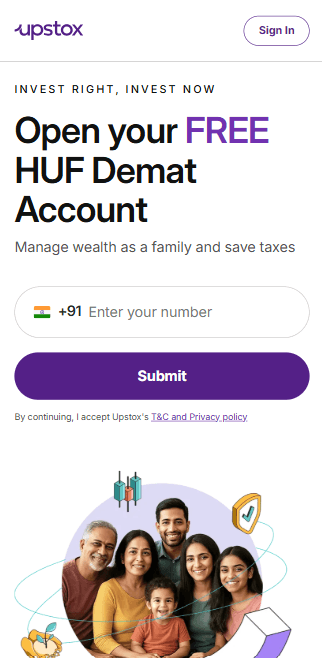
1. Enter your Mobile Number on the Upstox sign-up page.
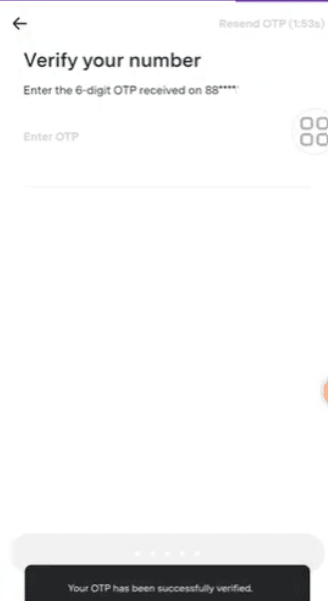
2. Verify the mobile number by entering the OTP sent to your device.
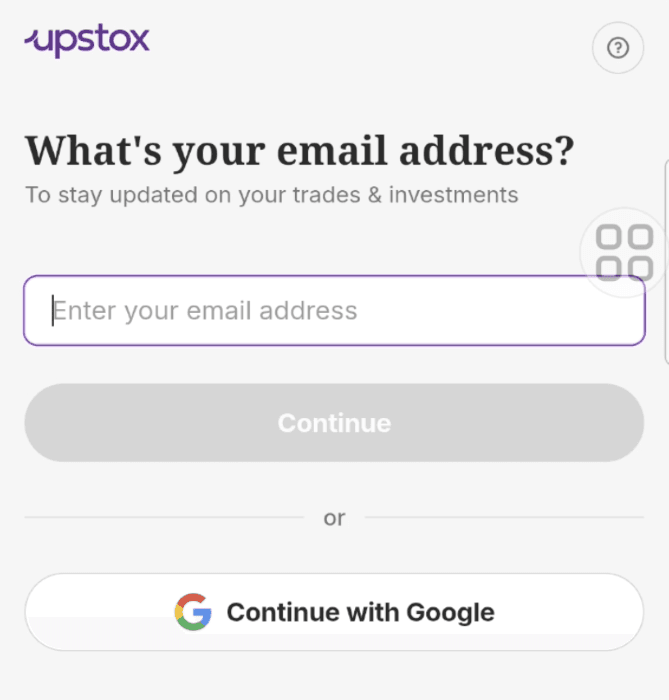
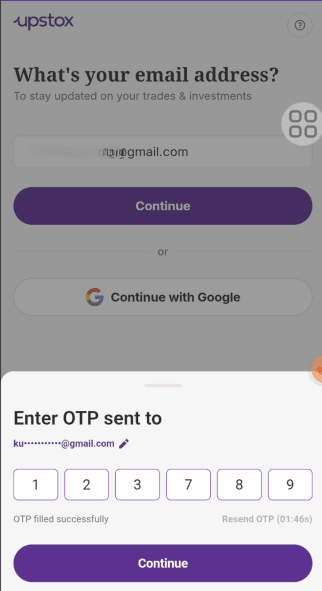
3. Enter your Email Address and verify it using the OTP sent to your email.
Step 2: Verify HUF PAN Details
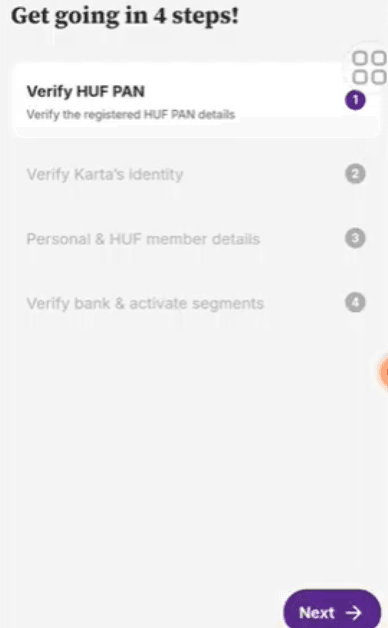
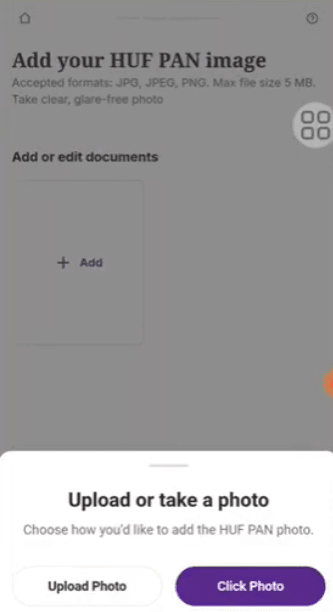
1. Upload a clear image of the HUF PAN Card when prompted.
- Click on "Click Photo" or "Upload Photo"
- Select and upload the document
2. Confirm the auto-fetched details of the HUF, including the HUF PAN Number, Date of Incorporation, and Full Name as per HUF PAN.
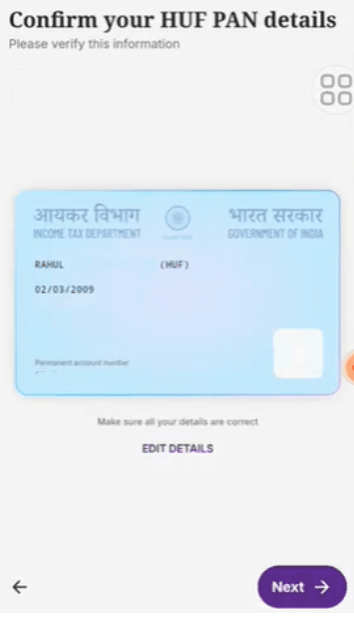
3. Click Next to proceed once the HUF PAN is verified.
Step 3: Verify Karta's Identity (DigiLocker)
1. Click Continue to start the DigiLocker verification process for the Karta's identity.
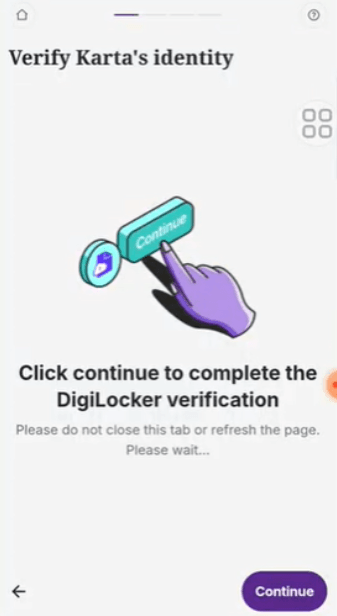
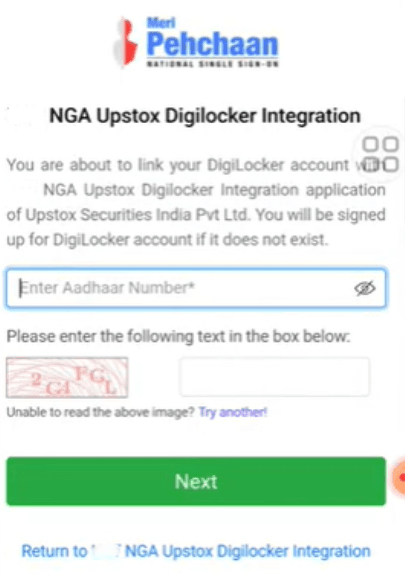
2. Enter the Karta's Aadhaar Number and the security text/captcha. Click Next.
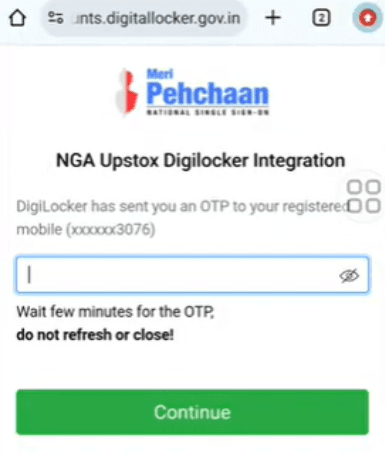
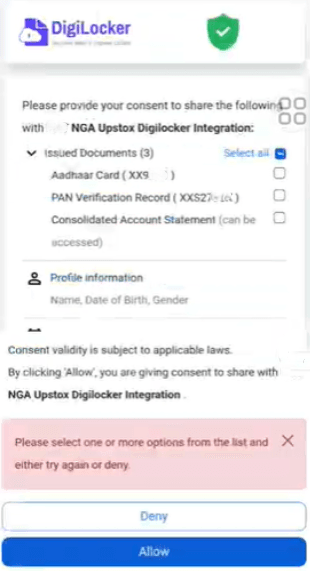
3. Enter the OTP sent to the Aadhaar-linked mobile number to grant consent. Click Continue and then Allow to share documents via DigiLocker.
4. Enter the Karta's Father's Full Name.
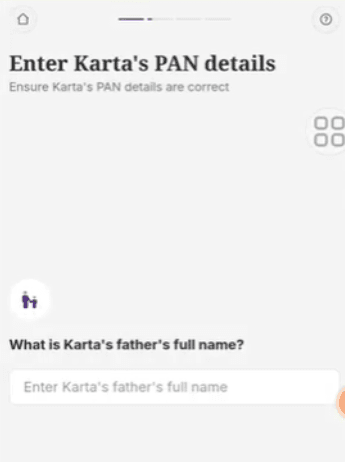
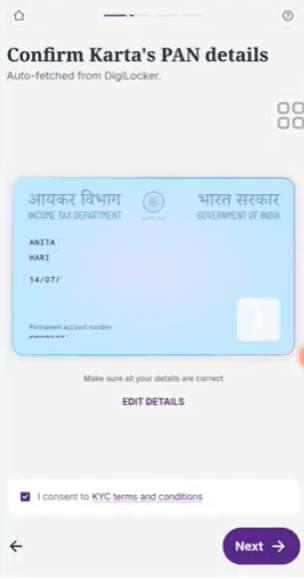
5. Confirm the auto-fetched Karta PAN details and consent to the KYC terms. Click Next.
B. Personal Details and Co-parceners
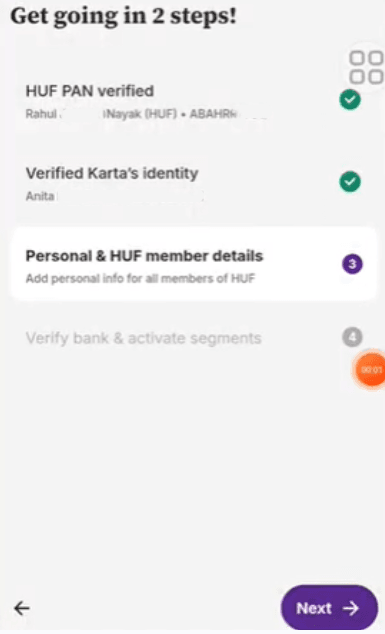
Step 4: Add Karta's Personal Details
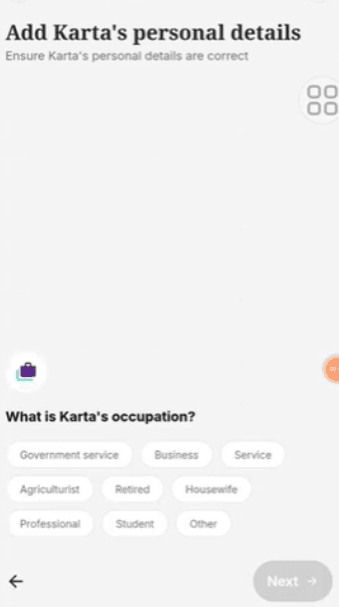
1. Provide the Karta's personal financial and demographic information:
- Occupation (e.g., Business, Professional, Service)
- Annual Income (e.g., ₹1L-5L, ₹5L-10L)
- Trading Experience (e.g., Less than 1 year, 1-2 years)
- Marital Status (Single/Married)
2. Click Next.
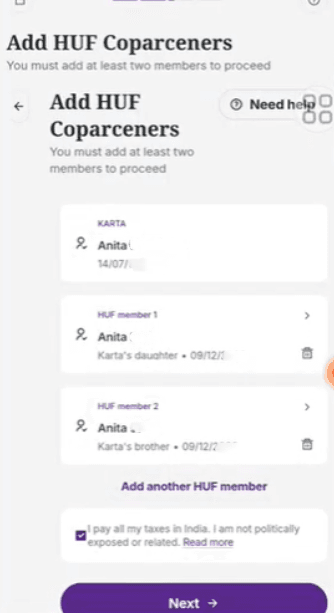
Step 5: Add HUF Co-parceners (Members)
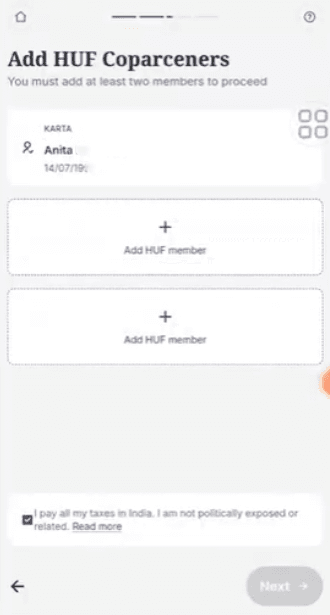
You must add at least two members (co-parceners) besides the Karta.
- Click on Add HUF member
- Enter the member's Full Name. Click Next.
- Select the member's Relationship to the Karta (e.g., Daughter, Brother, Son). Click Next.
- Enter the member's Date of Birth. Click Next.
- Select the member's Gender. Click Next.
- Repeat the process to add the second HUF member and any subsequent members.
- Check the declaration: "I pay all my taxes in India. I am not politically exposed or related."
- Click Next.
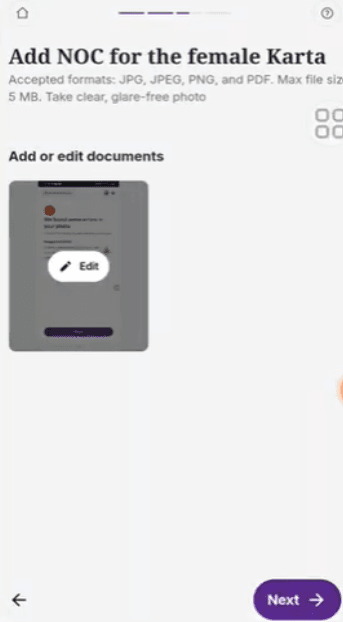
Step 6: Upload NOC for Female Karta (If Applicable)
- If the Karta is female, you will be required to upload the No Objection Certificate (NOC) signed by all co-parceners.
a. Click Add to upload the document.
b. Upload the file.
- Click Next.
C. Banking, Address, and Final Submission
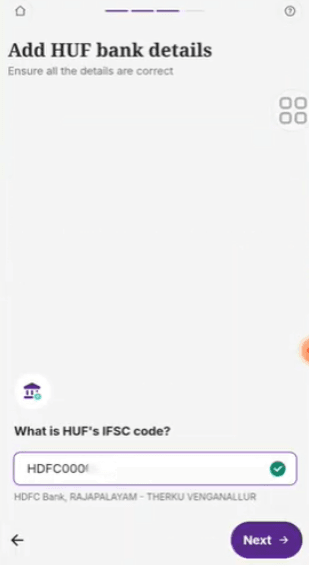
Step 7: Add HUF Bank Details
- Enter the HUF's IFSC Code. The bank and branch name will be displayed.
- Enter the HUF's Bank Account Number.
- Select the HUF's Bank Account Type (Savings or Current).
- Click Next.
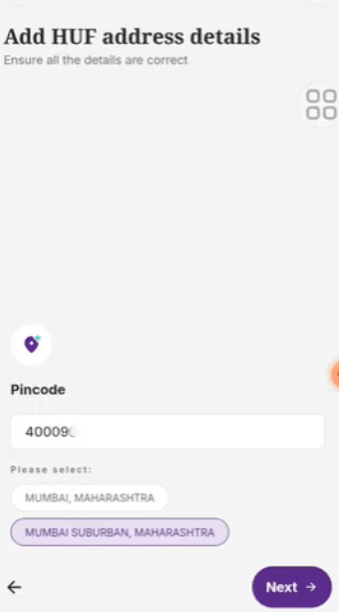
Step 8: Add HUF Address Details
- Enter the Address Line 1 and Address Line 2 (Optional) for the HUF.
- Enter the correct Pincode and select the appropriate City/State.
- Click Next.
Step 9: Activate Products (Segments) and Upload Income Proof
1. Select Products: Choose the segments you wish to activate (e.g., Equity, Mutual Funds & IPOs, Futures & Options, Currency Derivatives).
2. Upload Income Proof (Mandatory for F&O): If you have selected F&O segment, upload a document like a 6-month HUF Bank Statement or ITR Acknowledgment as income proof.
- Click Add to upload the HUF Bank Statement.
- Upload the document.
3. Click Next.
Step 10: Final e-Sign Submission
- The final step is to sign the account opening documents electronically via Aadhaar OTP (e-Sign). Click Continue.
- A new window will open for the e-Sign process:
- Enter the Karta's name EXACTLY as per their Aadhaar card.
- Check the box: "I have read the document/data I am signing and accept the Terms of Service."
- Click Sign.
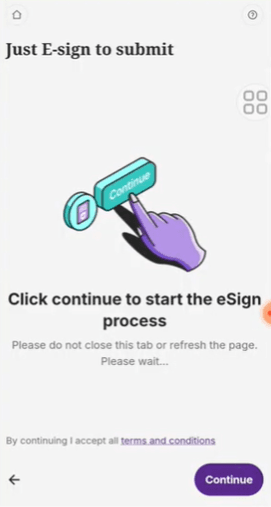
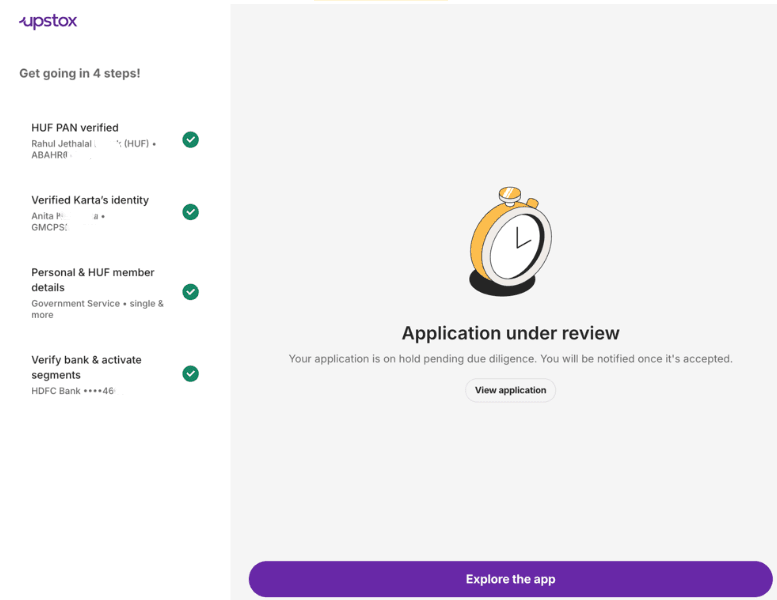
After a successful e-Sign, your application is submitted! Upstox will verify the documents, and your HUF Demat & Trading account will be activated shortly.
Note: For HUF accounts, the Annual Maintenance Charges (AMC) are free for the first year. From the second year onwards, an AMC of ₹1,000 + applicable GST will be charged.
Trade with Upstox
Want to open a Demat account?
Open a FREE Demat and Trading account to invest in Stocks, Mutual Funds, IPOs and more.
By signing up you agree to receive transaction updates on Whatsapp. You may also receive a call from an Upstox representative to help you with the account opening process.
Upstox Community
Upstox Community
| Topic | Replies | Views | Activity |
|---|