
Help Center

Getting Started
Trading
My Account
Mutual Funds
IPOs
Stock SIP
Gold
NPS
Government Securities
Fixed Deposits
Insurance
Loan
Smallcase
DartStock
Upstox API
NCD
US Stocks
Minor Account
How to set up a Trailing stop loss in Chart 360?
Chart 360 allows traders to use Trailing Stop Loss (TSL) orders, a great tool to manage risk, by automatically adjusting stop loss levels, according to market movement.
A trailing stop loss order, unlike a stop loss order, maintains a predetermined distance from the Last Traded Price (LTP) as the market moves in your direction, which may help to lock in profits while limiting losses.
What is Trailing Stop Loss and How Does It Work?
When you set a TSL on Chart 360, you set the trailing gap, the distance your stop loss order will trail behind the LTP. As the market price moves favorably, the stop loss will move up or down accordingly, but if the market price moves against you, the stop loss order remains unadjusted. A TSL order will only execute when the LTP breaches the stop loss level.
Three Options to Add Trailing Stops on Chart 360
Method 1: Adding TSL to a New Order:
Step 1: Select your strike price by tapping on the values highlighted on the Y axis.
Step 2: Select Call or Put Option.
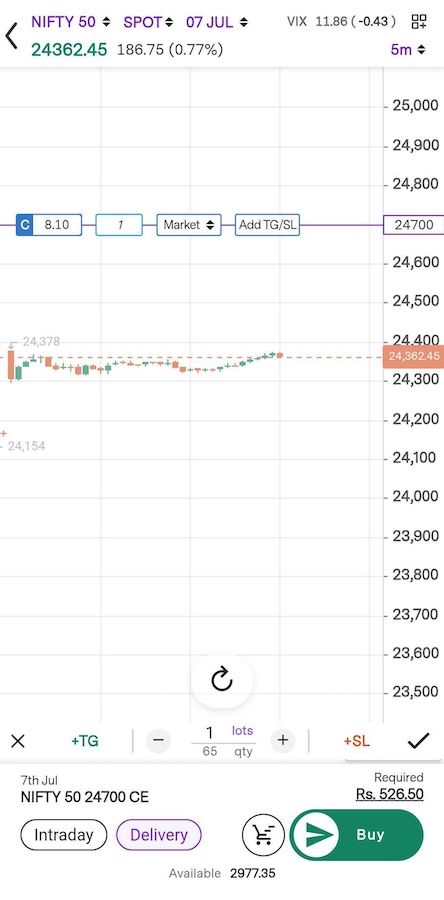
Step 3: Swipe up to buy and down to sell an Option.
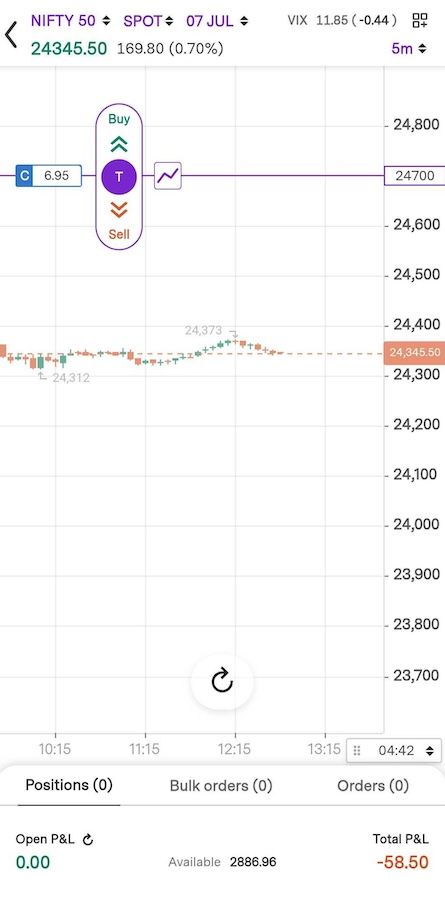
Step 4: Select the ‘Add TG/SL’ option which will take you to the target and stop loss settings.
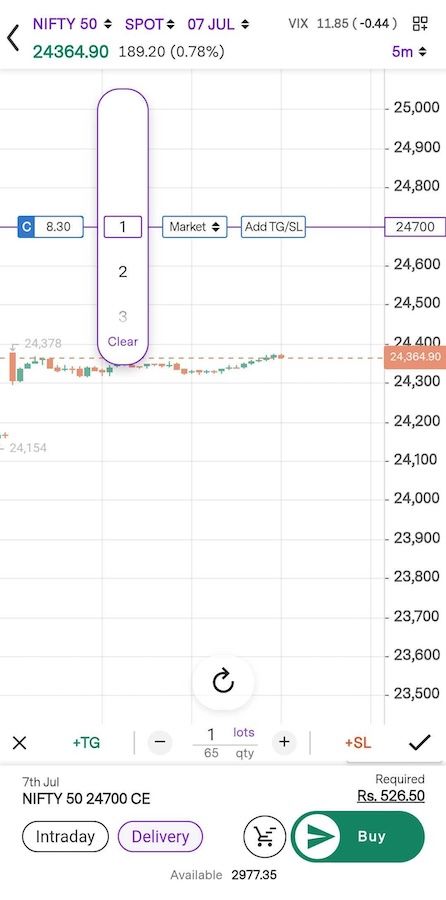
Step 5: Either drag the target and stop loss lines or tap the keyboard icon to enter the value.
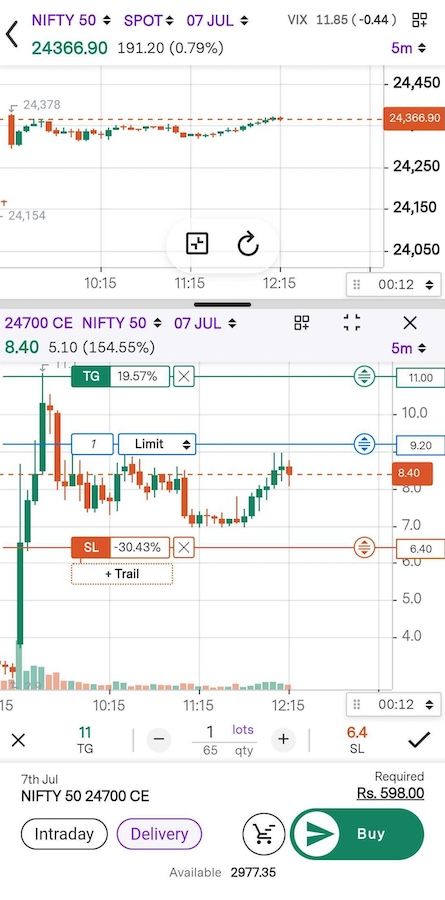
Step 6: Tap on ‘SL’ to change your stop loss to a trailing stop loss (TSL).
Step 7: You’ll see ‘Trail’ to define the trailing gap. Tap the ‘Trail’ button to enter the trailing gap value.
Step 8: Tap ‘Tick’ to save the trailing gap value.
Step 9: Swipe the Buy or Sell button to place your TSL order.
Step 10: You can also see your TSL orders in the Orders section of the bottom sheet.
Method 2: Adding Trailing Stop Loss (TSL) to Open Positions via Bottom Sheet:
Step 1: Open up the Positions tab, then swipe to the right on the open position.
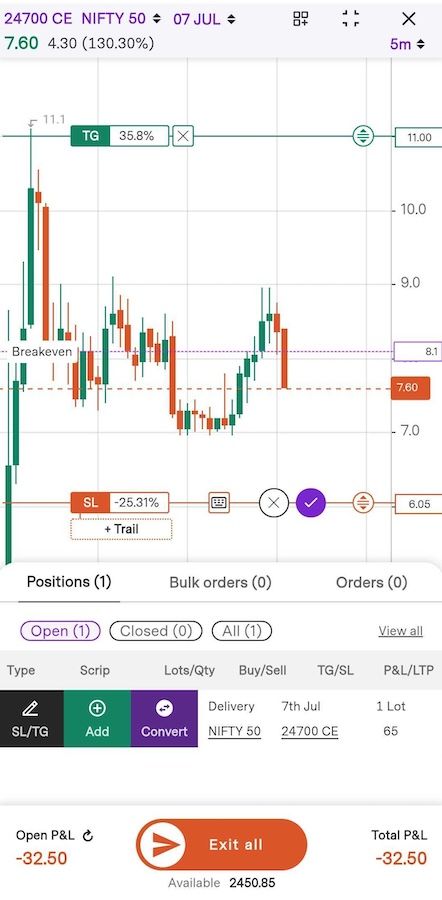
Step 2: Tap on ‘SL/TG’.
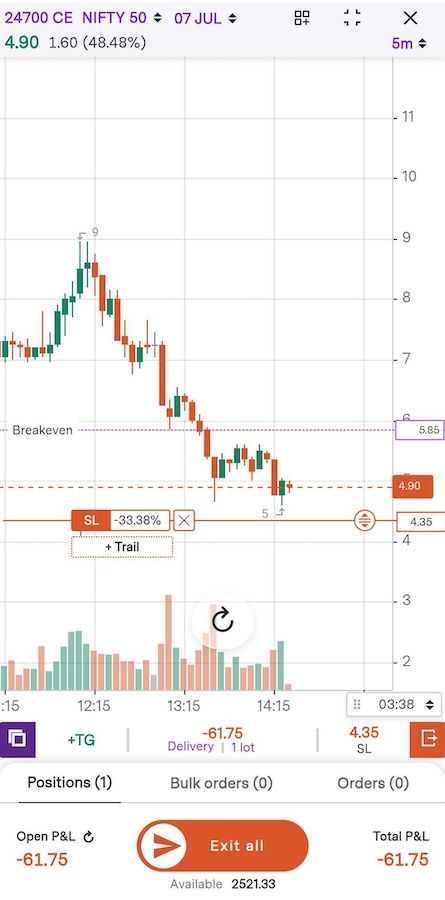
Step 3: Tap on ‘SL’ to toggle it to Trailing Stop Loss mode.
Step 4: Under ‘Trail’ insert trailing gap value.
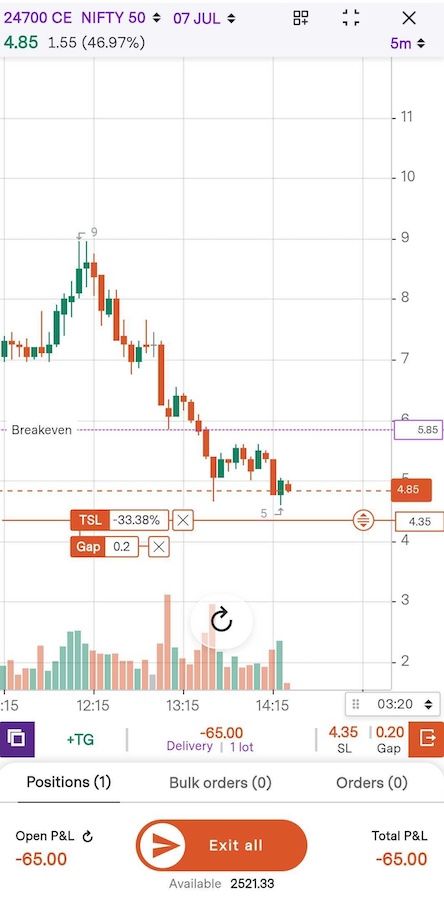
Step 5: Confirm to apply changes.
Step 6: Under the Positions tab, monitor your TG/SL levels.
Method 3: Adding Trailing Stop Loss (TSL) on Open Positions via Chart
Step 1: On the chart, tap on your open position.
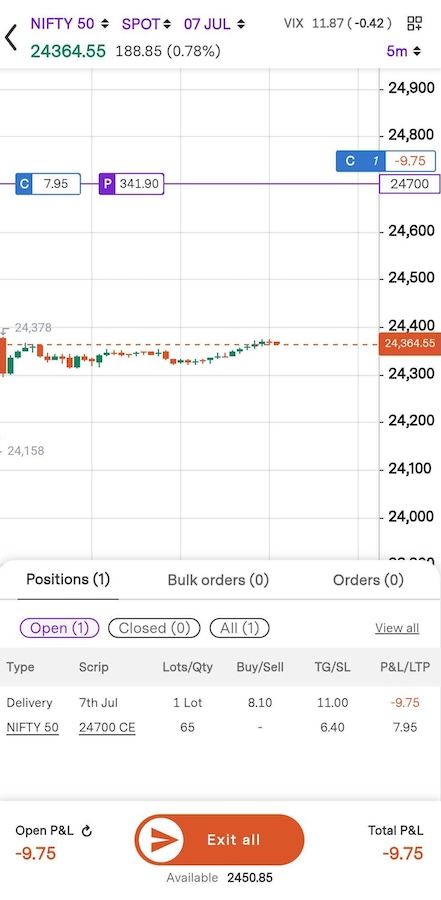
Step 2: Select ‘Edit’ to change the Target (‘TG’) and Stop loss (‘SL’).
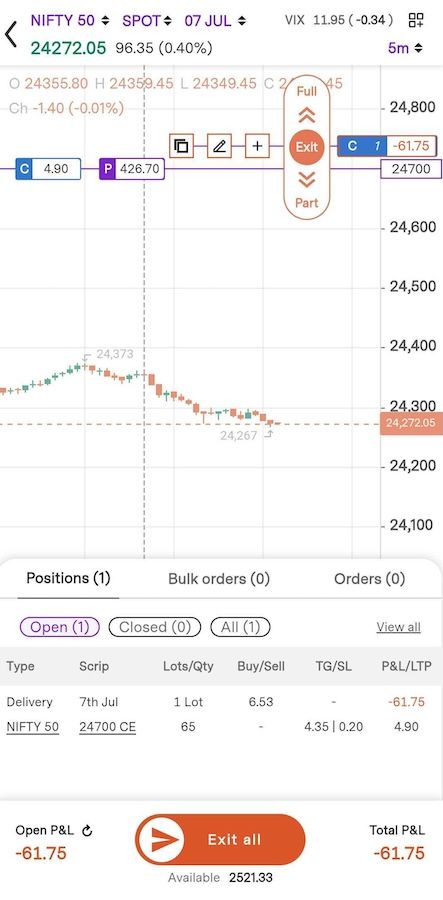
Step 3: Select ‘SL’ to use trailing stop loss instead.
Step 4: Click ‘Trail’ to enter the trailing gap value.
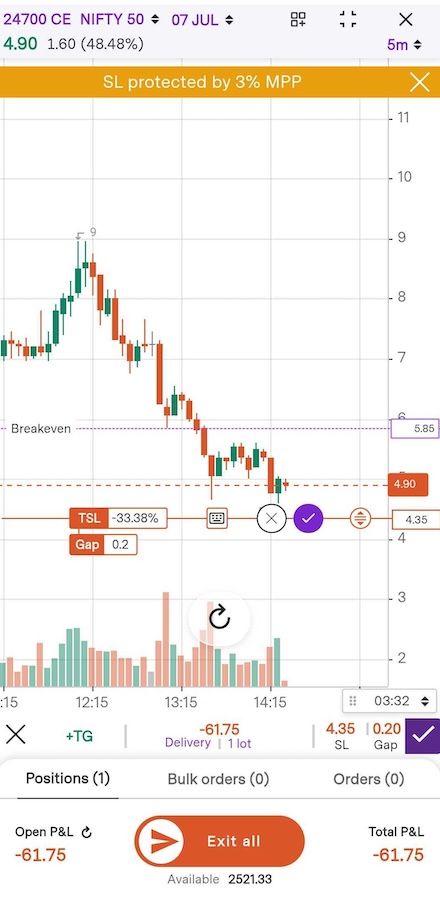
Step 5: Click 'Tick’ button to save.
Additional Information:
Trailing Stop Loss orders are treated as limit orders and are protected by a Market Price Protection (MPP%) mechanism, which comes preset at 5%. This function ensures that your
Trade with Upstox
Want to open a Demat account?
Open a FREE Demat and Trading account to invest in Stocks, Mutual Funds, IPOs and more.
By signing up you agree to receive transaction updates on Whatsapp. You may also receive a call from an Upstox representative to help you with the account opening process.
Upstox Community
Upstox Community
| Topic | Replies | Views | Activity |
|---|