
Help Center

Getting Started
Trading
My Account
Mutual Funds
IPOs
Stock SIP
Gold
NPS
Government Securities
Fixed Deposits
Insurance
Loan
Smallcase
DartStock
Upstox API
NCD
US Stocks
Minor Account
How to set Stop Loss and Target orders on Chart 360: Step by Step Instructions
With each advancement in trading technology, the Chart 360 platform in the Upstox app has become a center for flexible risk management and reward optimization for traders. Below you will find step-by-step instructions to set Stop Loss (SL) and Target (TG) orders directly with Chart 360, whether you are placing a new trade or managing an existing position.
Here are the three ways for how to set stop loss and Target Order:
Setting SL/TG While Creating an Order:
Set Stop Loss and Target at the time of placing your trade.
Step 1: Tap on the highlighted values on the Y-axis and select the strike price.
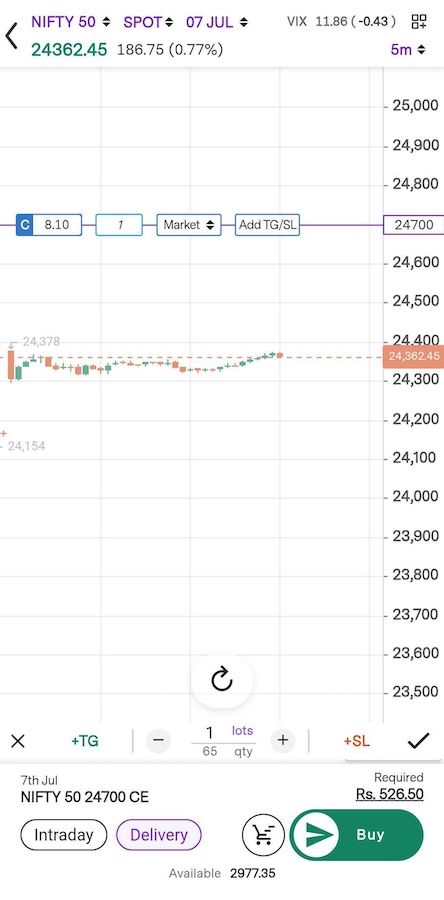
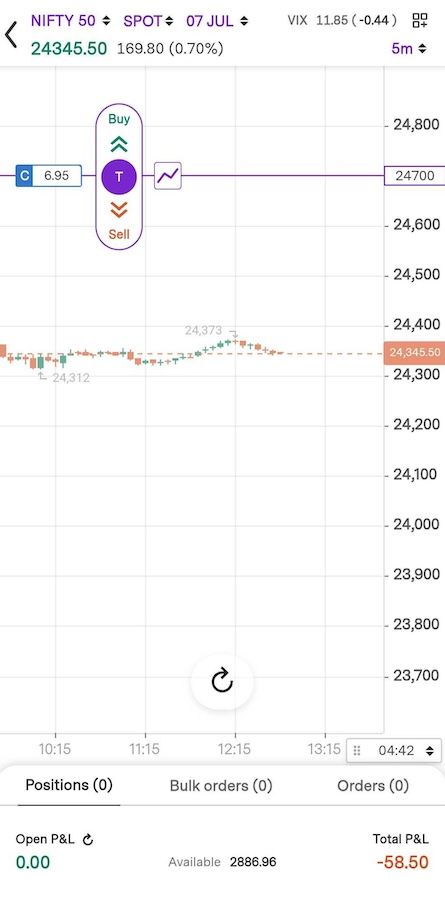
Step 2: Swipe up or down to initiate a buy or sell on the option.
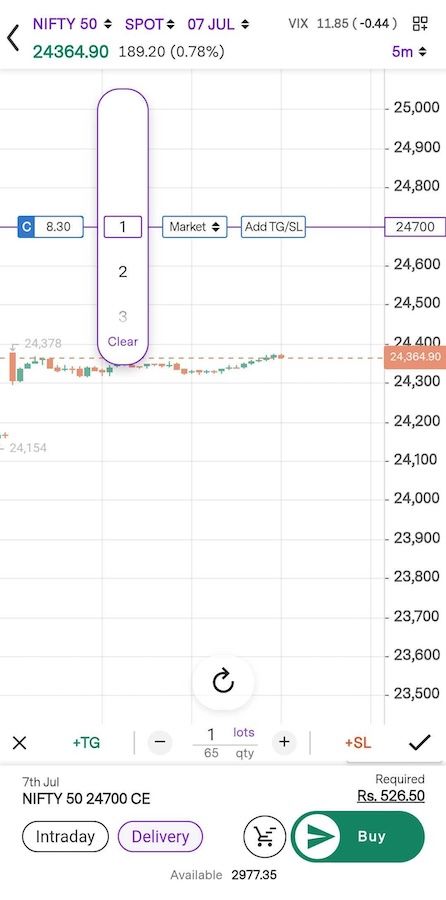
Step 3: Tap “Add TG/SL” to bring up the Target and Stop Loss interface.
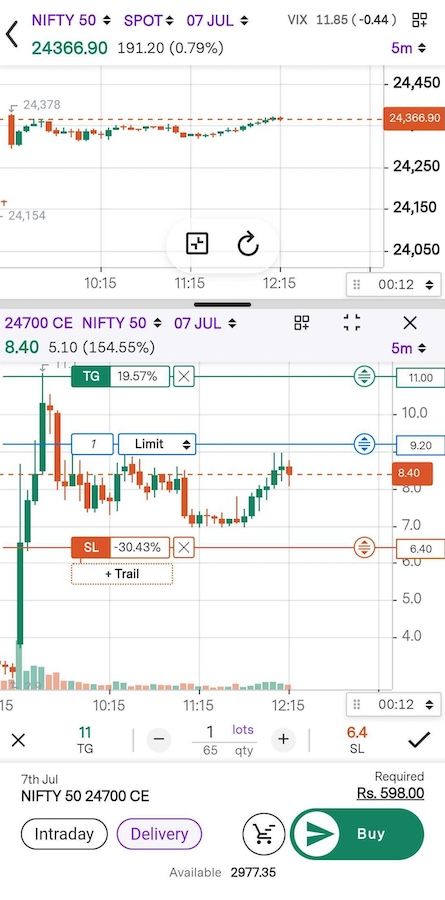
Step 4: Move the lines on the chart to your desired Target and Stop Loss levels or press the keyboard icon to input precise values yourself.
SL/TG Setting for an Open Position through Chart:
Insert or modify Stop Loss and Target for an open position that has already been opened.
Step 1: On the chart display, press the Y‑axis to show your open position.
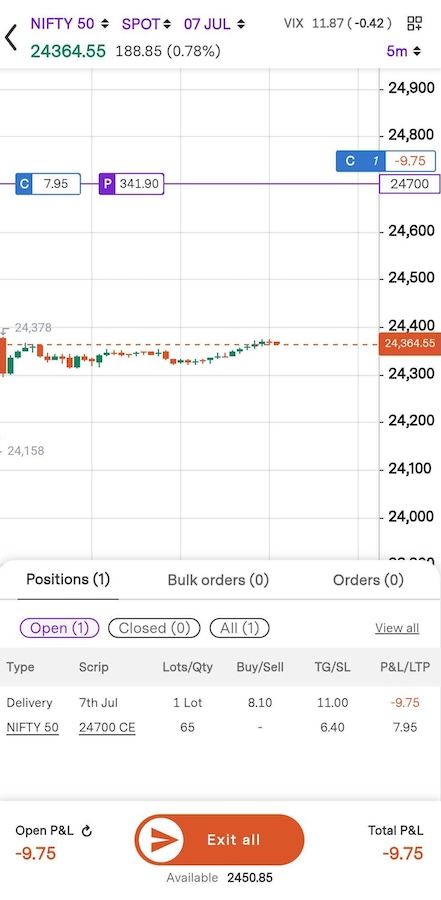
Step 2: Press the edit icon to open SL/TG settings.
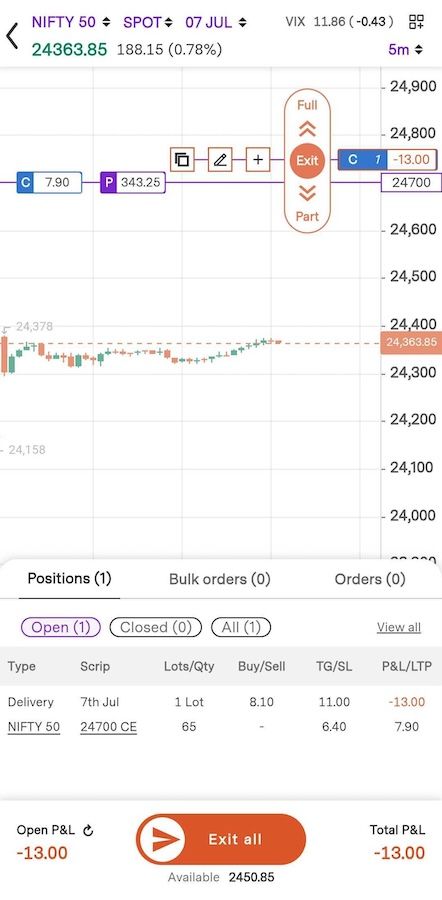
Step 3: Move the Stop Loss or Target line to the target price level.
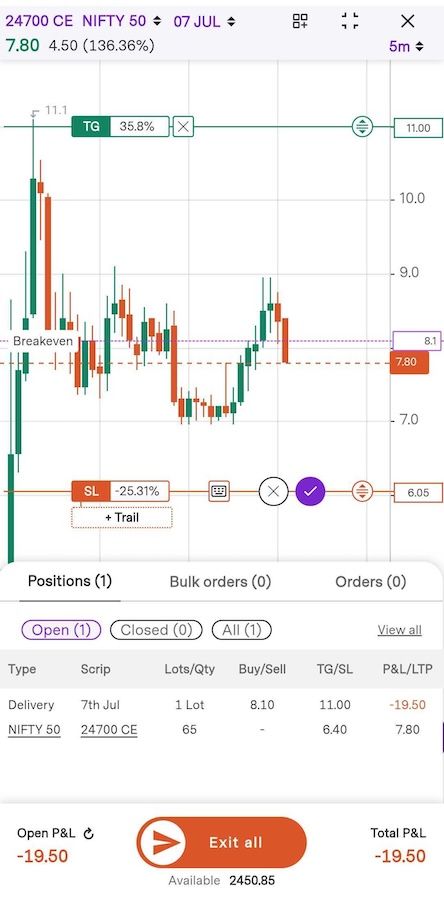
Step 4: Click on Tick to confirm.
Setting SL/TG through Bottom Sheet Interface
Utilise the bottom‑sheet menu for controlling your open trades.
Step 1: Right swipe the open position within the list view to expose options.
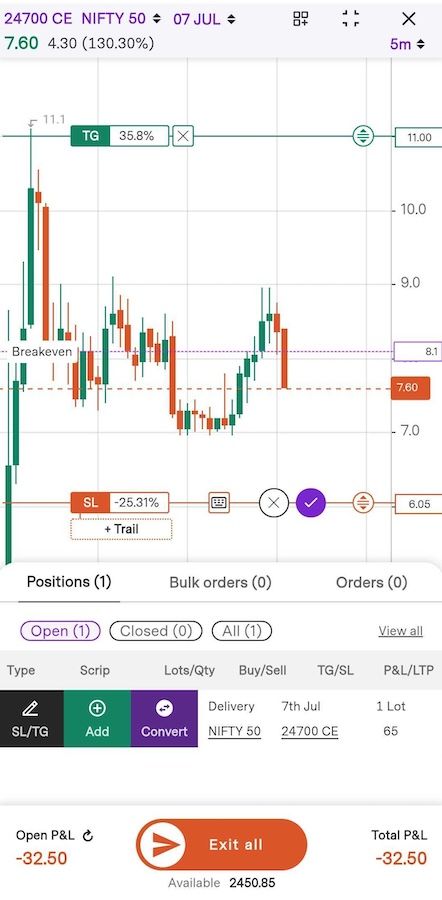
Step 2: Tap the edit icon to view Stop Loss and Target settings.
Step 3: Adjust the lines on the chart according to how you want your SL and TG price levels to be.
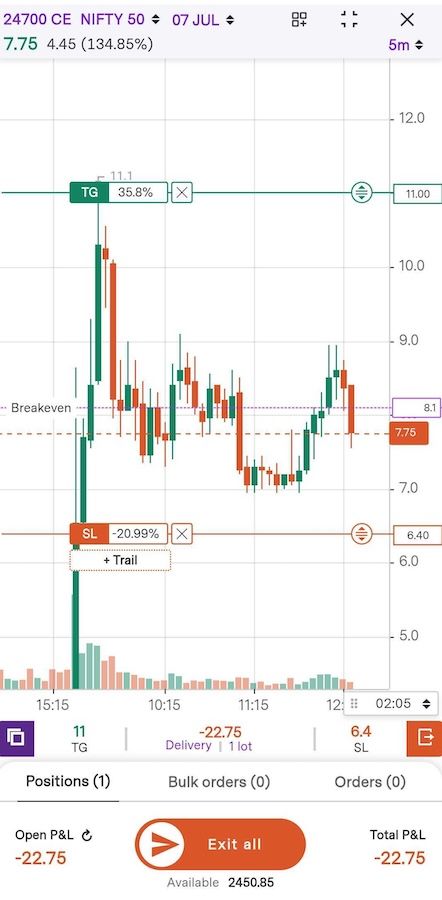
Step 4: Click on Tick to confirm. You can view your TG/SL under Positions.
What All Traders Should Know Before Executing the Trades?
Your Target (TG) and Stop Loss (SL) are associated with the position they were set for. If you manually close the entire position, both the TG and SL will be canceled.
If you add additional quantity to a position that already has TG/SL (or both) established, the new quantity carries over the same TG/SL levels.
If you close some but not all of a position with TG/SL already on, the residual quantity will continue to trade under the original TG/SL settings.
With these functionality choices, Chart 360 gives traders the capability to control their risk‑reward profile dynamically when entering orders, during position tracking, or from the portfolio bottom sheet.
Trade with Upstox
Want to open a Demat account?
Open a FREE Demat and Trading account to invest in Stocks, Mutual Funds, IPOs and more.
By signing up you agree to receive transaction updates on Whatsapp. You may also receive a call from an Upstox representative to help you with the account opening process.
Upstox Community
Upstox Community
| Topic | Replies | Views | Activity |
|---|