
Help Center

Getting Started
Trading
My Account
Mutual Funds
IPOs
Stock SIP
Gold
NPS
Government Securities
Fixed Deposits
Insurance
Loan
Smallcase
DartStock
Upstox API
NCD
US Stocks
Minor Account
How to change default lots in a template on the Upstox Scalper terminal?
The Upstox Scalper Terminal has now added an option for traders to update the template default lot sizes, allowing for quicker trade execution and better management of high-frequency trading strategies.
Step 1: Traders using Upstox Scalper Terminal can now edit the default lot size in any of their templates. To do so, simply hover over the template tab you want to edit e.g., Nifty or Bank Nifty.
Step 2: You can click the three-dot menu “(⋮)” at the end of the template tab to get an option to edit it.
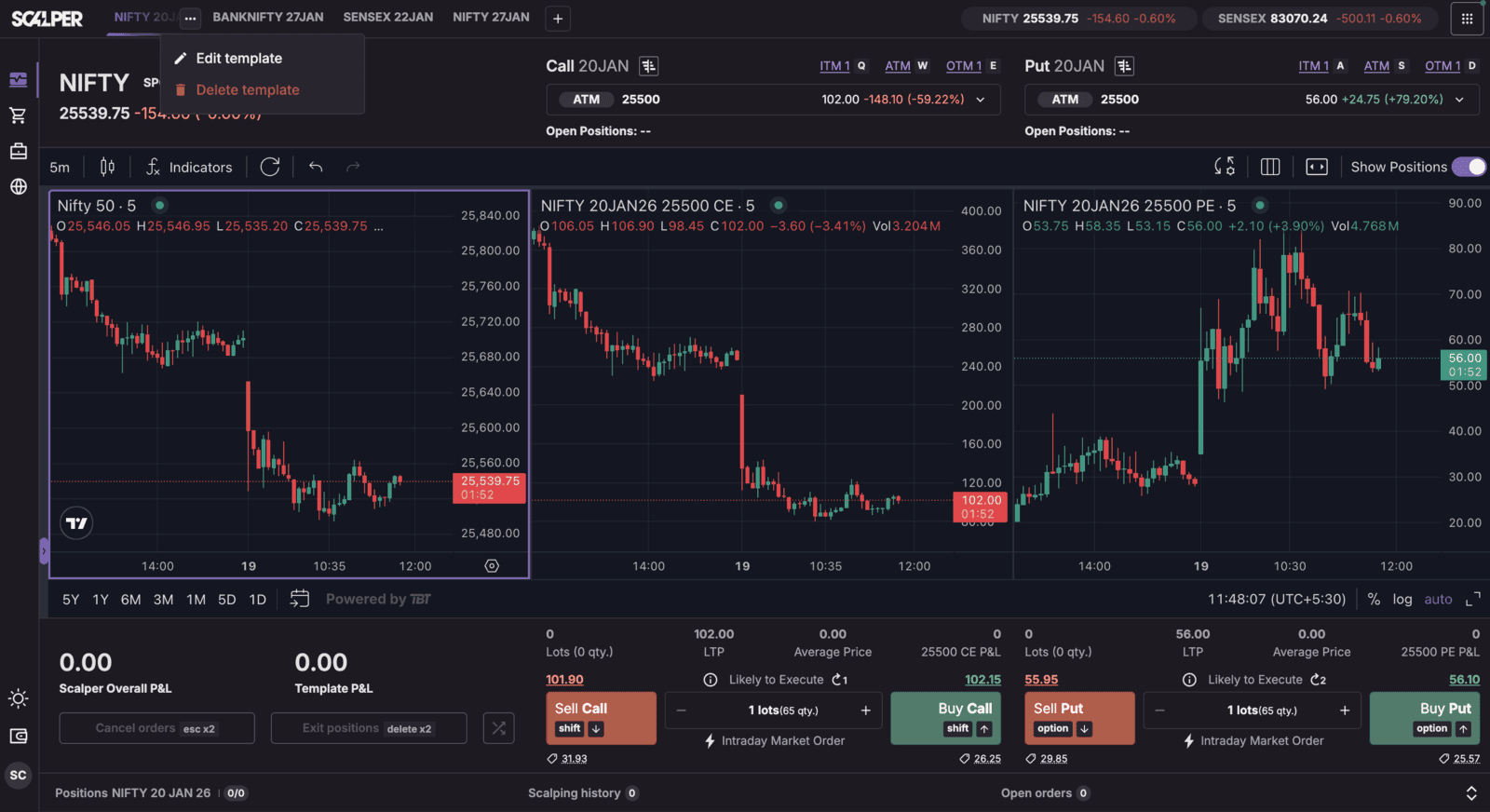
Step 3: From the dropdown menu, select "Edit template," and it will take you to the interface to edit the template.
Step 4: While you are on the editing screen, you will see the "Default Lots" field where the current lot sizes are shown.
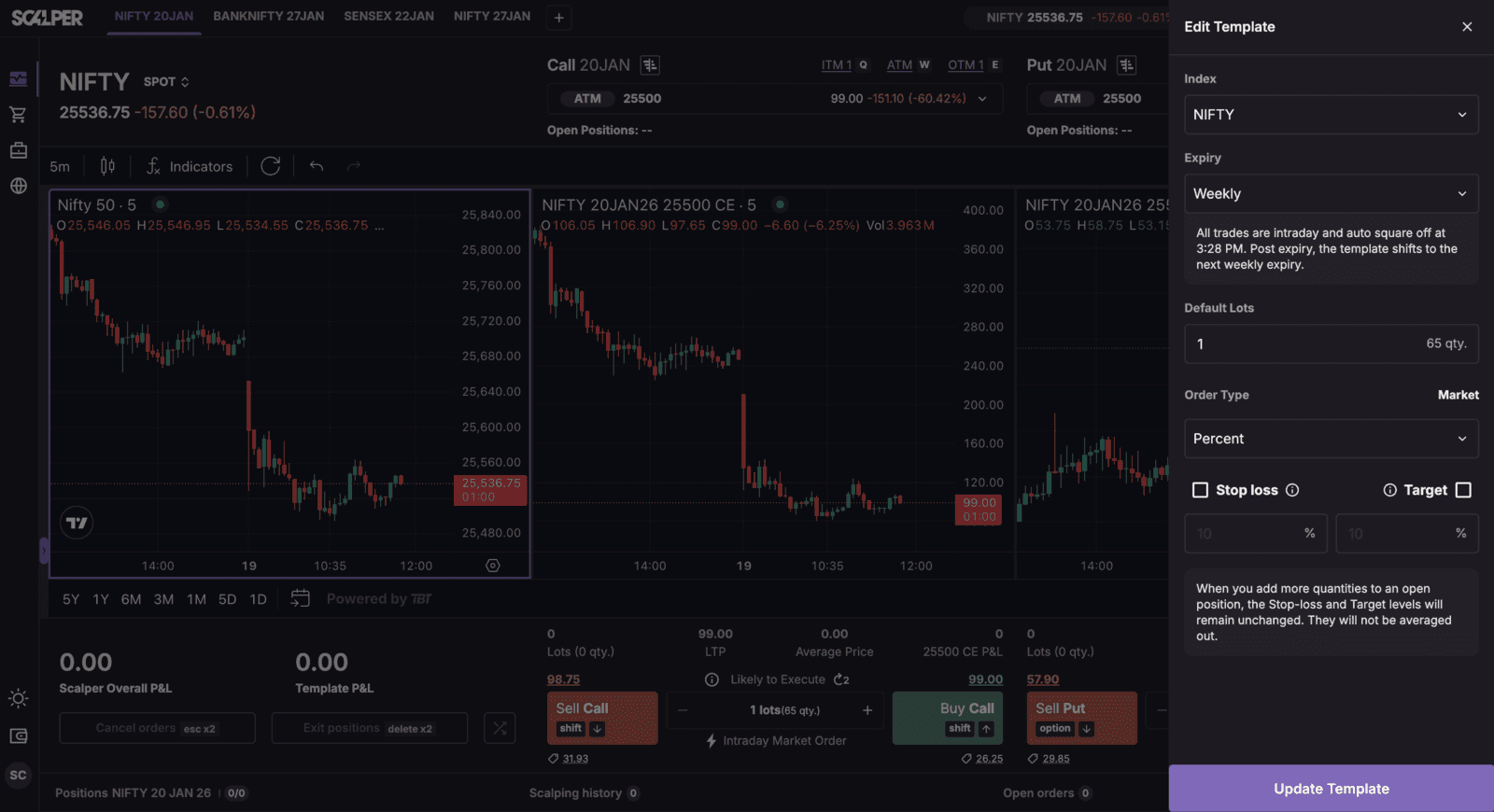
Step 5: Enter the number of lots you want as the default for any trades you do from this template.
Step 6: Now that you have entered the default lot size, you can click “Update Template," and the lot-size changes will be saved. The new default lot size will automatically apply to future trades; however, traders can override it on execution and the template will not need to be edited.
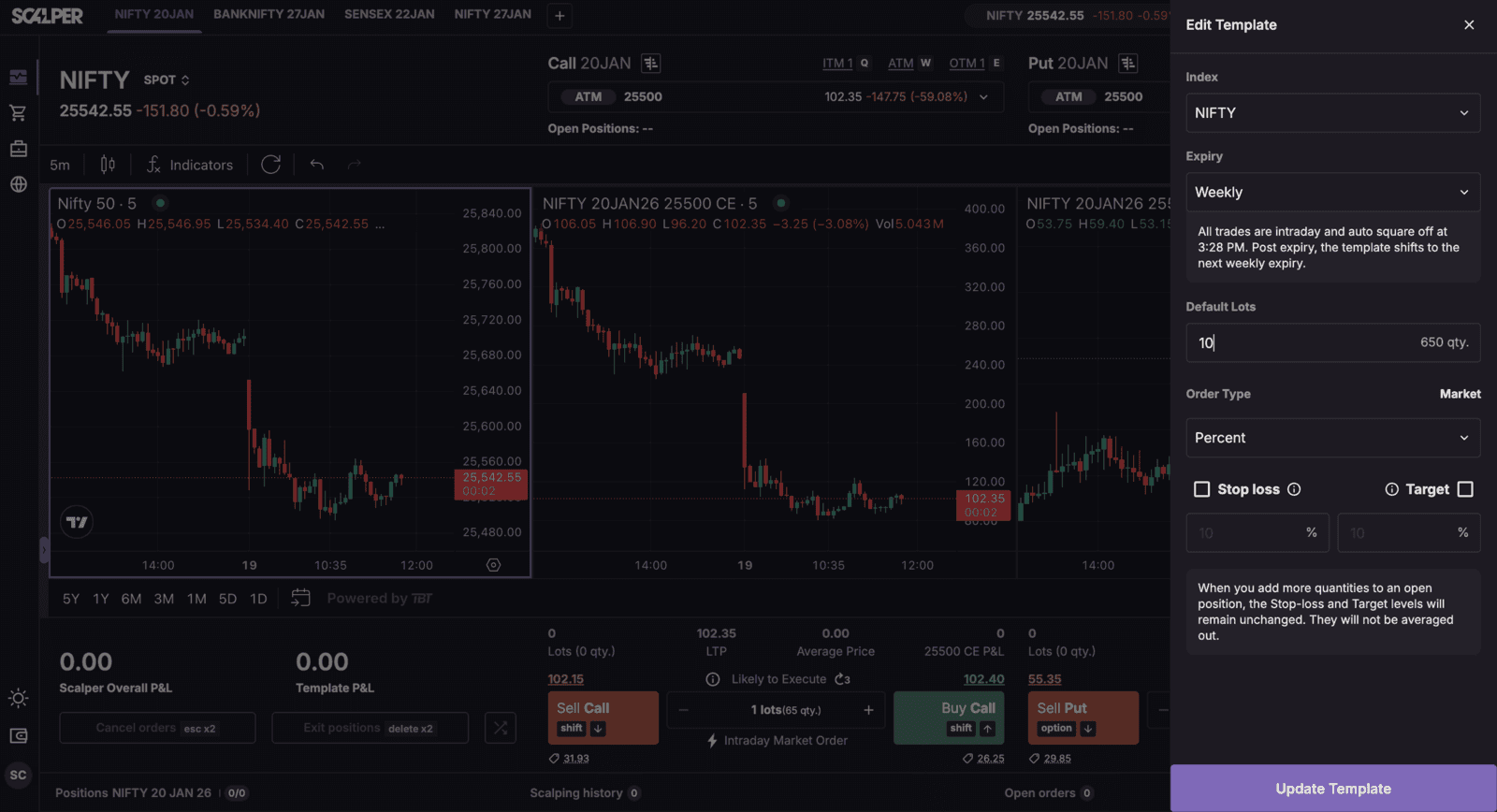
Note: Traders still have the option to change the default lot size at the moment of execution without modifying the preset template, so they retain flexibility while maintaining consistency.
This feature increases efficiency for high-frequency and active traders, giving them the advantage of instantly changing their trading strategies and/or their trading approach while keeping their workflow as streamlined as possible.
Trade with Upstox
Want to open a Demat account?
Open a FREE Demat and Trading account to invest in Stocks, Mutual Funds, IPOs and more.
By signing up you agree to receive transaction updates on Whatsapp. You may also receive a call from an Upstox representative to help you with the account opening process.
Upstox Community
Upstox Community
| Topic | Replies | Views | Activity |
|---|