
Help Center

Getting Started
Trading
My Account
Mutual Funds
IPOs
Stock SIP
Gold
NPS
Government Securities
Fixed Deposits
Insurance
Loan
Smallcase
DartStock
Upstox API
NCD
US Stocks
Minor Account
How to apply indicators in the Upstox scalper terminal?
The Upstox Scalper Terminal has a fast, user-friendly trading layout, allowing traders to engage with technical analysis of underlying assets or Call (CE) and Put (PE) options using a variety of indicators.
Indicators are great in terms of organising your trades and confirming your analysis, and can enhance your overall trading effectiveness. Here, we provide a brief guide on how to add indicators to your charts appropriately, if desired.
Step 1: To begin, traders can start with any of the three charts in their template: an Underlying, CE, or PE chart.
Step 2: Then, in the TradingView chart panel at the top bar, click on the "Indicators" option.
.jpg)
Step 3: A search bar will appear. Search for your desired indicator, such as RSI, Supertrend, or Moving Average, etc.
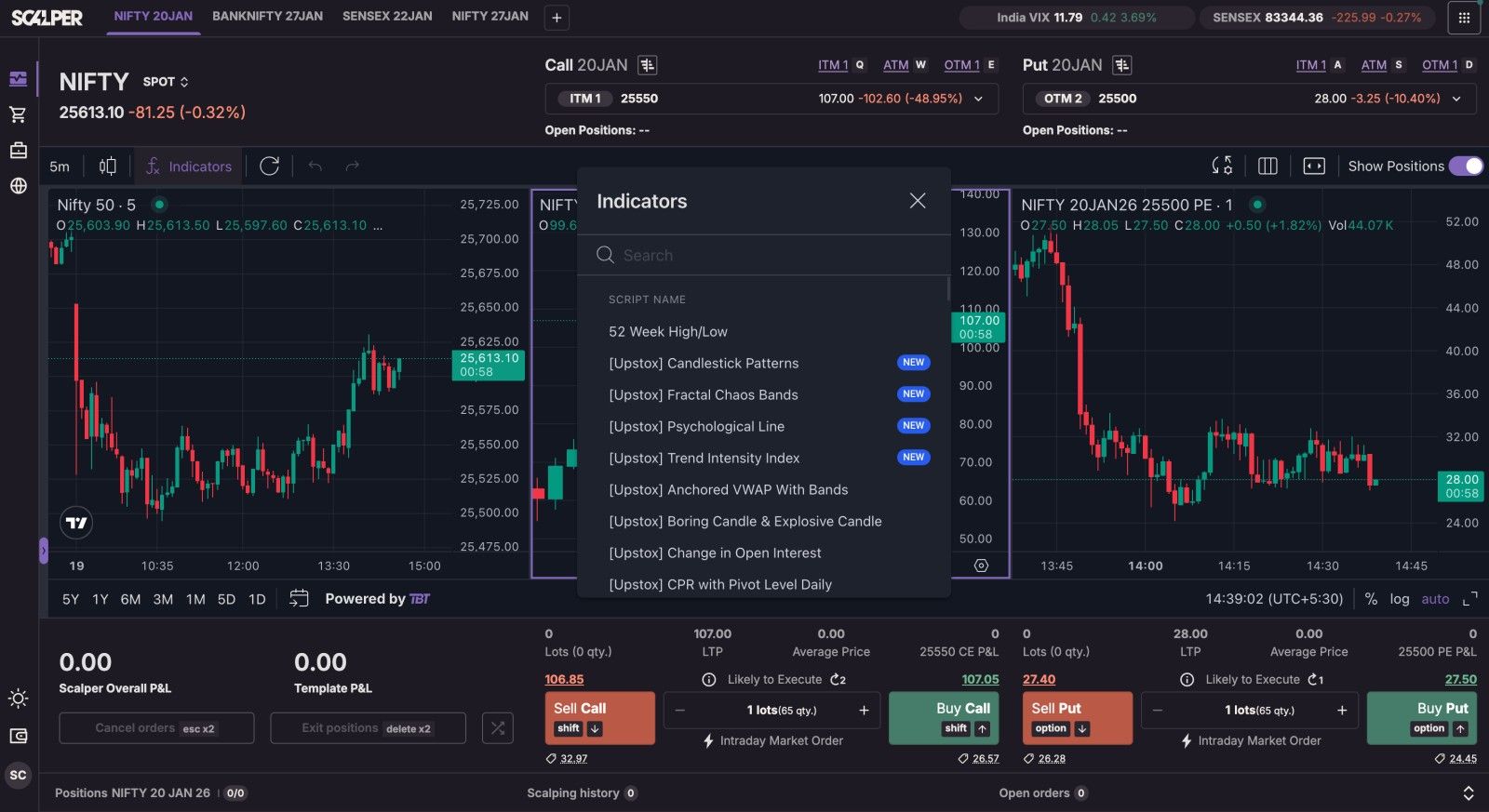
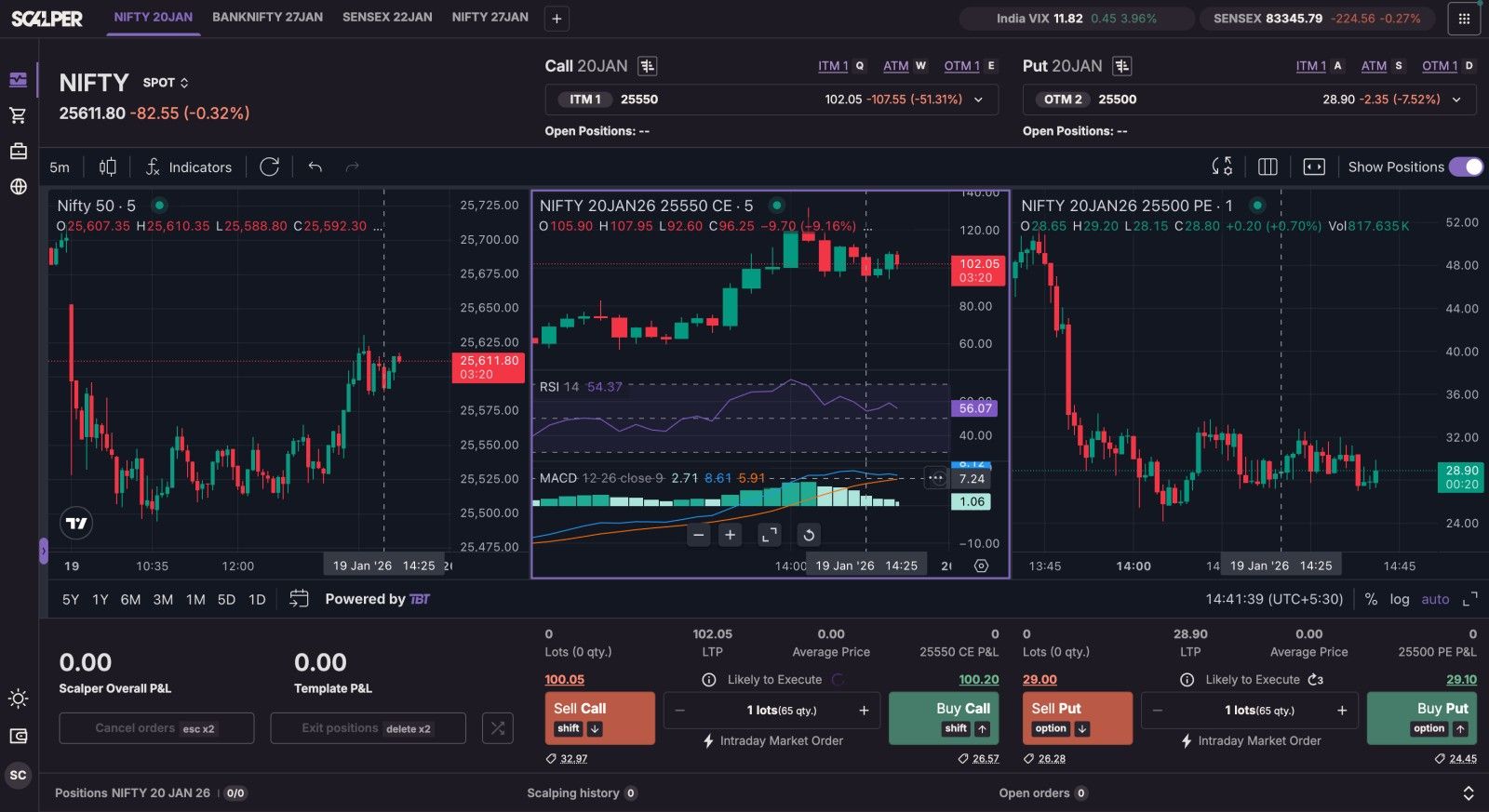
Step 4: Next, click on the indicator that was in the list, and it will immediately appear on your chosen chart.
Step 5: Keep in mind that the indicators have to be added individually to their relevant chart. Indicators can also be added in multiple instances to enhance your chart analysis between all three charts (ie, use more than one type of MA in a CE chart).
Trade with Upstox
Want to open a Demat account?
Open a FREE Demat and Trading account to invest in Stocks, Mutual Funds, IPOs and more.
By signing up you agree to receive transaction updates on Whatsapp. You may also receive a call from an Upstox representative to help you with the account opening process.
Upstox Community
Upstox Community
| Topic | Replies | Views | Activity |
|---|