
Help Center

Getting Started
Trading
My Account
Mutual Funds
IPOs
Stock SIP
Gold
NPS
Government Securities
Fixed Deposits
Insurance
Loan
Smallcase
DartStock
Upstox API
NCD
US Stocks
Minor Account
How to access scalper settings in the Upstox scalper terminal?
The Upstox Scalper Terminal includes several customisable settings that will enhance the usability of the trading terminal.
The options allow scalpers to customise things such as keyboard shortcuts to sound alerts, letting scalpers make the interface and overall workflow feel developer-friendly and intuitive for faster trading.
Step 1: After logging into your account on the Scalper Terminal, look for your Profile icon in the lower left corner. Click on the profile icon, and a drop-down will open with account options and configuration options.
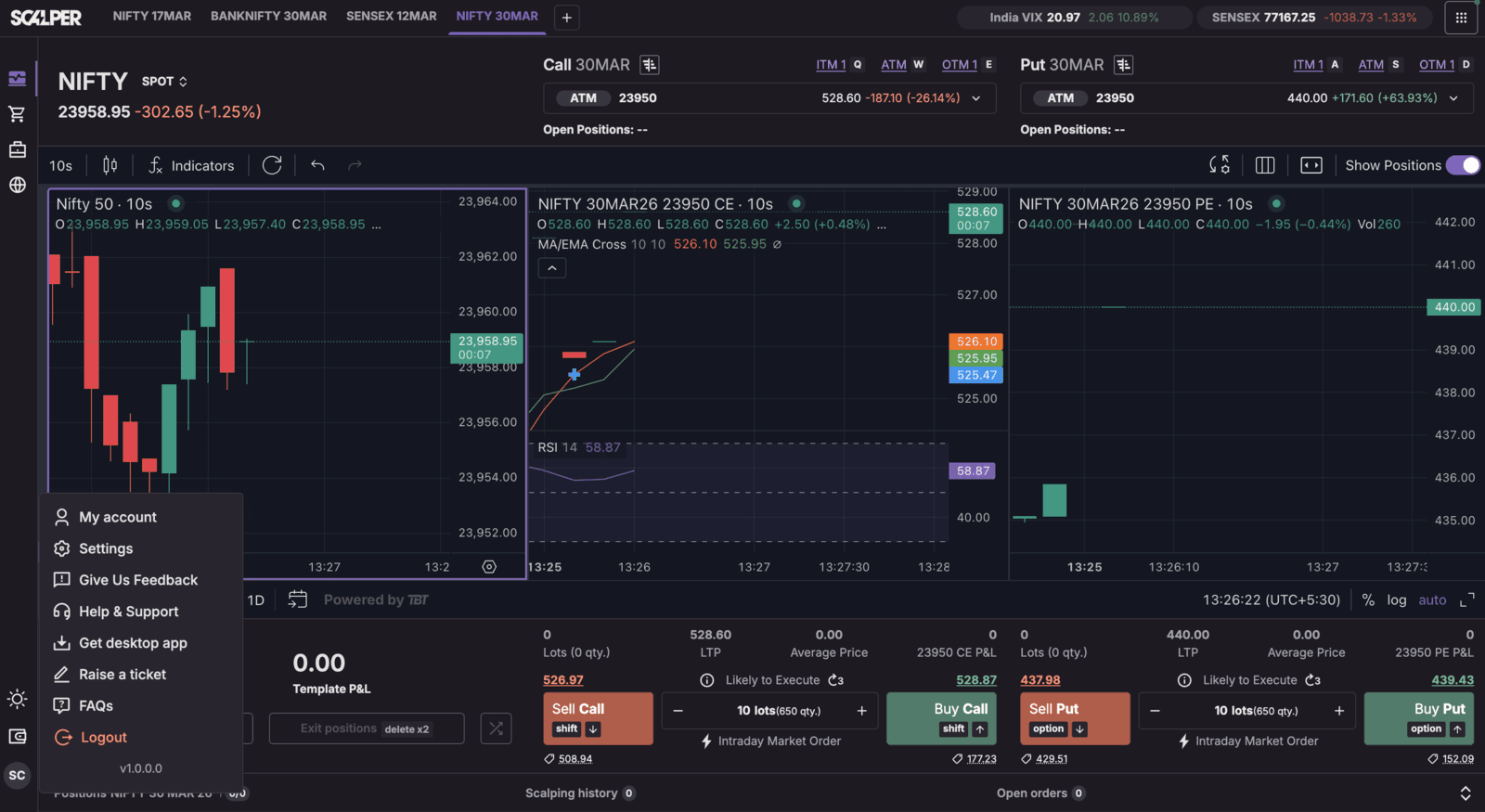
Step 2: Next, click "Settings" in the dropdown menu, which will bring up the Scalper Settings panel with a number of customisations available.
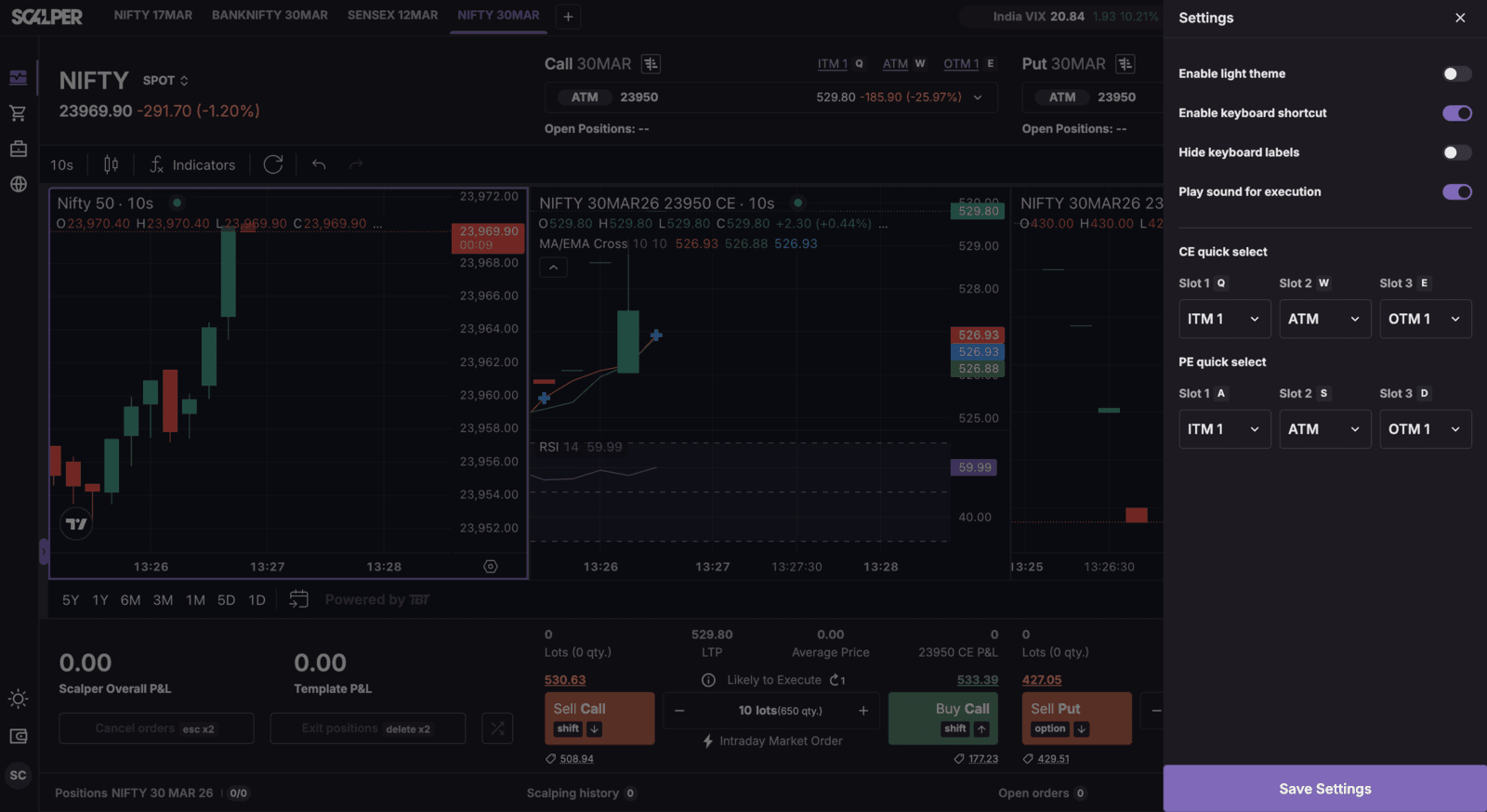
The following settings are available to be adjusted:
Keyboard Shortcuts Toggle: Enables or disables hotkeys for Buy/Sell to induce faster trading.
Hide Keyboard Labels: Cleans the interface by hiding shortcut hints on the Buy/Sell buttons for a minimalistic interface.
Play Sound for Execution: Audio confirmations for sending an order, as well as audio indications for your orders failing, will keep scalpers aware of their trades without needing constant visual confirmation.
Quick Strike Configuration: Allow ATM, ITM, or OTM to be your preferred strikes on the templates when executing trades to make your workflow faster, especially in the queue line at the exchange.
Trade with Upstox
Want to open a Demat account?
Open a FREE Demat and Trading account to invest in Stocks, Mutual Funds, IPOs and more.
By signing up you agree to receive transaction updates on Whatsapp. You may also receive a call from an Upstox representative to help you with the account opening process.
Upstox Community
Upstox Community
| Topic | Replies | Views | Activity |
|---|