
Help Center

Getting Started
Trading
My Account
Mutual Funds
IPOs
Stock SIP
Gold
NPS
Government Securities
Fixed Deposits
Insurance
Loan
Smallcase
DartStock
Upstox API
NCD
US Stocks
Minor Account
How can I delete a template in Scalper?
The Upstox Scalper terminal helps traders remove templates quickly, which helps them keep an organised workspace while ensuring that active trades aren’t accidentally affected.
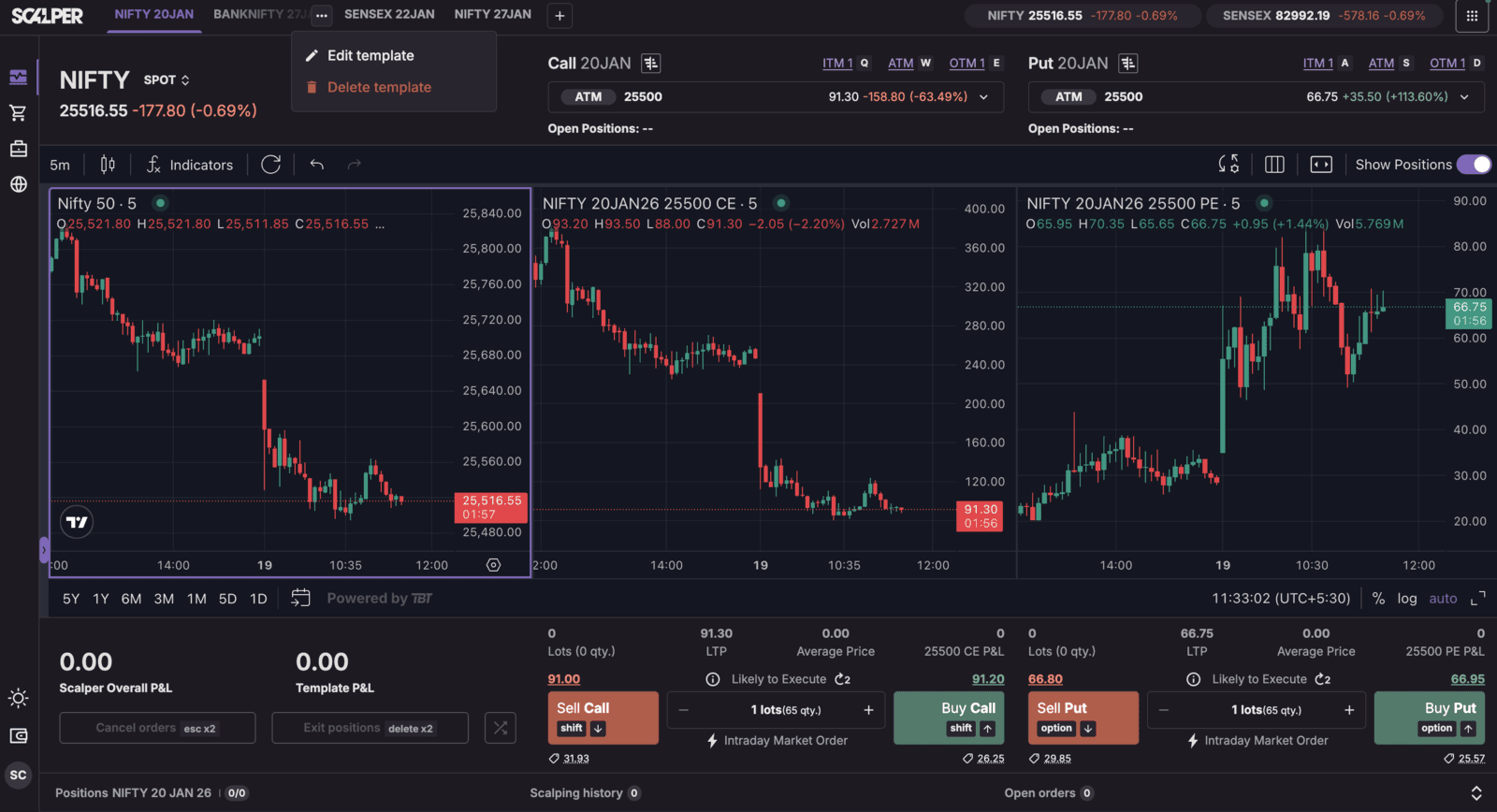
Step 1: To start, hover over the template tab you wish to delete. Click on the three dots (⋮) that appear and select “Delete” from the few options that show up. When you select the delete option, it prompts it into deletion mode, allowing traders to confirm the deletion of templates.
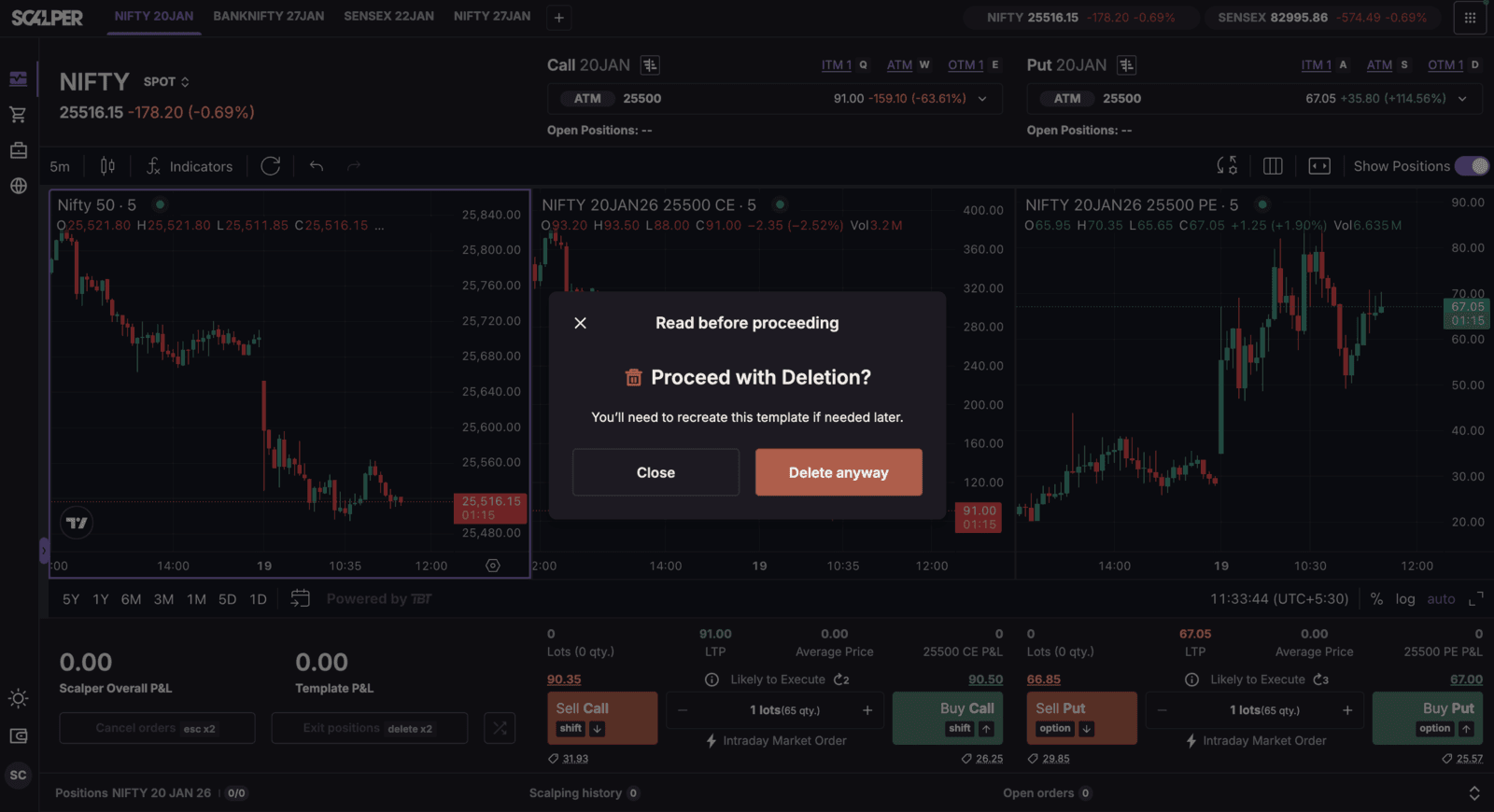
Step 2: After selecting delete, it will trigger a confirmation request. The trader will now further click “Delete anyway” to finish removing the template.
Note: It is worth noting that templates cannot be deleted if there are open positions; the tab will bring up a notification snackbar stating, “Cannot delete a template with open positions.” Again, this is to help make sure active trades are not unintentionally interrupted.
Trade with Upstox
Want to open a Demat account?
Open a FREE Demat and Trading account to invest in Stocks, Mutual Funds, IPOs and more.
By signing up you agree to receive transaction updates on Whatsapp. You may also receive a call from an Upstox representative to help you with the account opening process.
Upstox Community
Upstox Community
| Topic | Replies | Views | Activity |
|---|