
Help Center

Getting Started
Trading
My Account
Mutual Funds
IPOs
Stock SIP
Gold
NPS
Government Securities
Fixed Deposits
Insurance
Loan
Smallcase
DartStock
Upstox API
NCD
US Stocks
Minor Account
Can I modify an open order in Chart 360?
Yes, you can modify open (pending) orders in Chart 360.
Whether you need to adjust your entry price, change quantity or update stop-loss and target levels, Chart 360 provides intuitive visual and manual modification methods. The best part, you can do this all without cancelling and re-placing your order.
When can you modify orders?
You can modify orders that are:
- Pending/Open (not yet executed).
- Limit orders awaiting your price.
- Stop-loss orders waiting to trigger.
- Orders with targets set.
You cannot modify:
- Executed orders (already filled).
- Cancelled orders.
- Rejected orders.
How to modify an Open Order?
Step 1: Go to the 'Orders' section at the bottom of Chart 360,
Tap the Orders tab in the bottom navigation bar
You will see a list of all pending orders with details,
Strike price and option type (Call/Put)
Order type (Limit/Market/SL)
Pending quantity
Order price
Timestamp
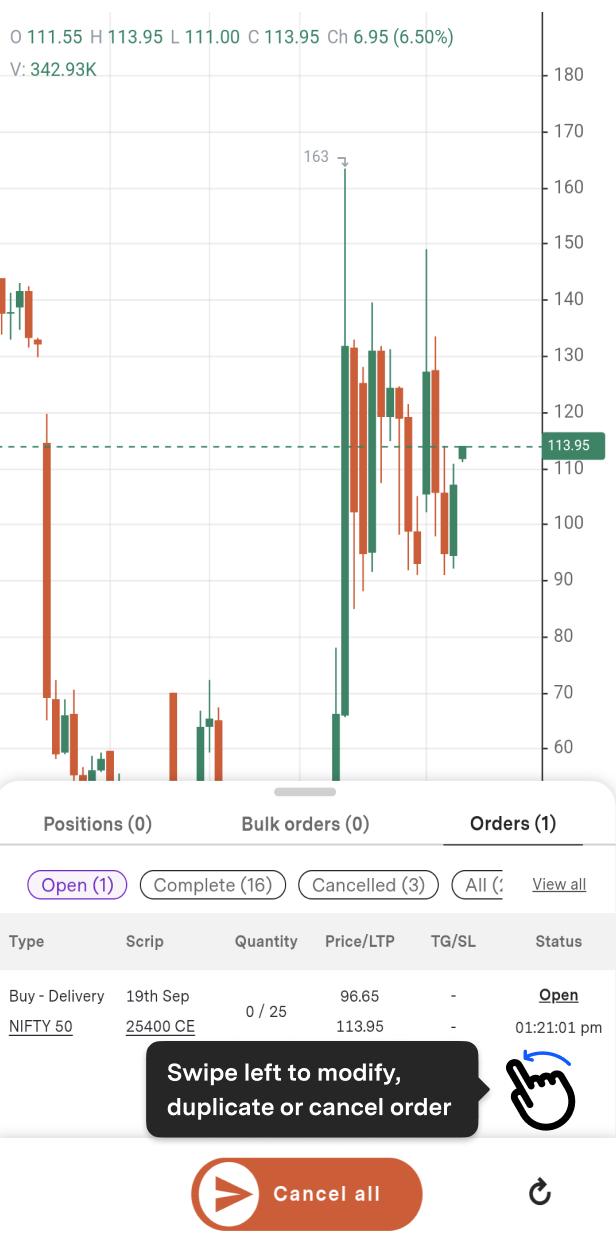
Identify the order you want to modify from this list.
Step 2: Initiate modification,
Swipe left on the pending order you want to modify,
Tap the Modify icon (pencil symbol).
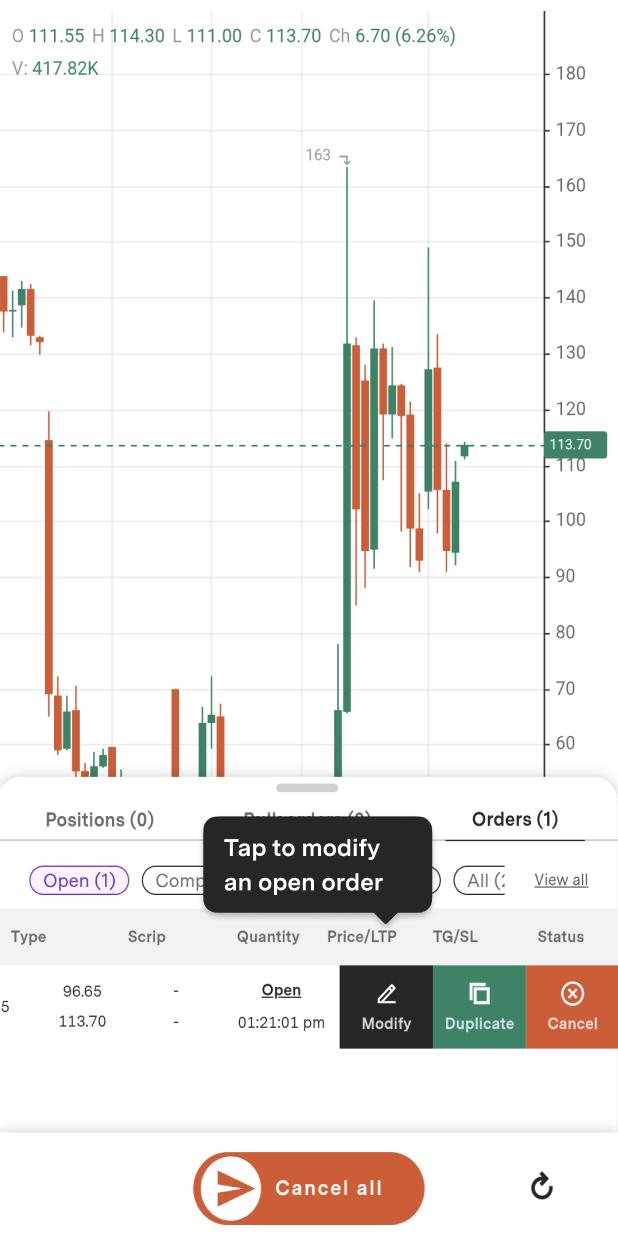
You will now see your pending order represented visually on the chart with interactive lines you can adjust.
Step 3: To modify,
- Drag lines to adjust prices.
Chart 360's visual modification is its standout feature. You will see three interactive lines on the chart,
- Limit Price Line
- Stop-Loss Line (if set)
- Target Line (if set)
These lines can be dragged up or down depending on your modification and they move in real-time. OR Manually enter the prices.
Tap the keyboard icon, a numeric keypad will appear. Type the exact limit price, stop-loss or target you want
Step 4: Adjust quantity or lot size.
To modify the number of lots in your pending order,
- Use the + and – icons.
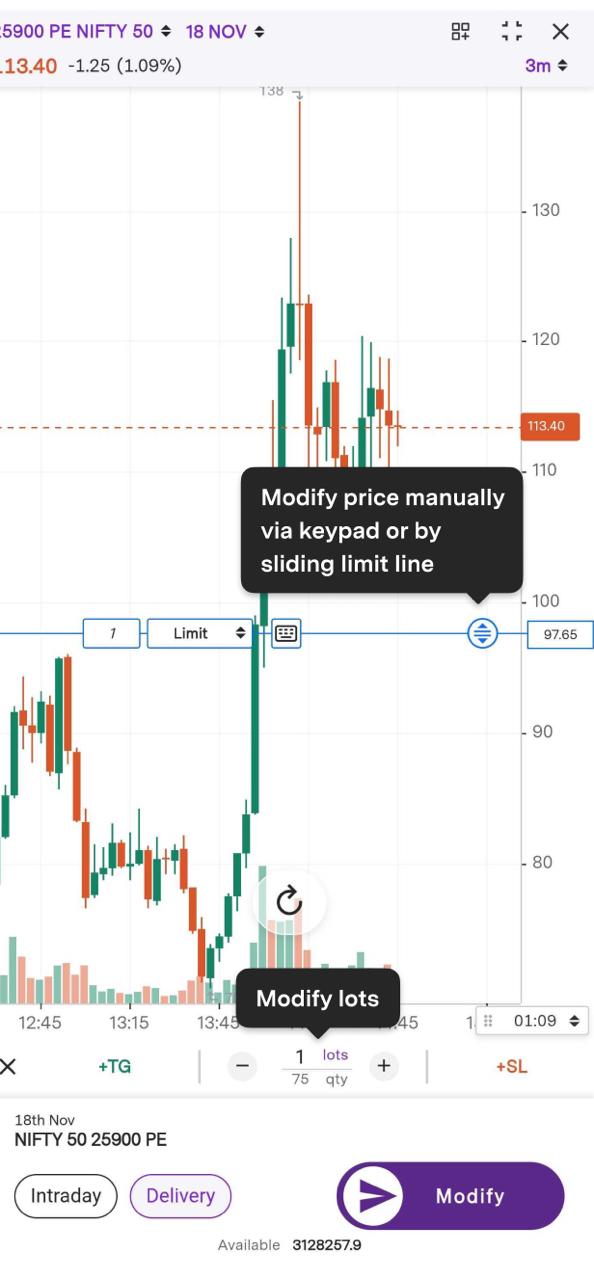
Step 5: Confirm the Modification.
After adjusting prices and/or quantity, Review changes and Swipe right to confirm the modification.
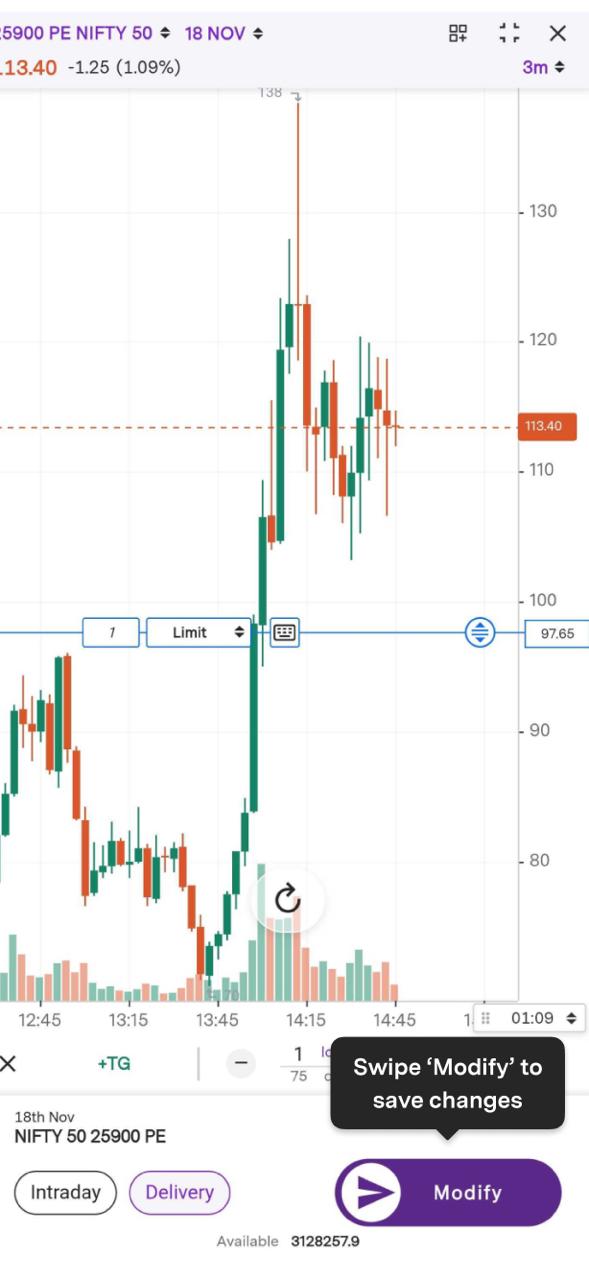
On confirmation:
- You will receive an on-screen notification confirming the modification.
- The updated order appears in your Orders tab with new details.
- SMS/email confirmation may be sent depending on your settings.
Trade with Upstox
Want to open a Demat account?
Open a FREE Demat and Trading account to invest in Stocks, Mutual Funds, IPOs and more.
By signing up you agree to receive transaction updates on Whatsapp. You may also receive a call from an Upstox representative to help you with the account opening process.
Upstox Community
Upstox Community
| Topic | Replies | Views | Activity |
|---|